Sessions
This page explains how you start a session with the agent. It also explains how you open, export, share, unshare, rename, pin, and delete a session.
Related pages:
- Sessions Hyground starts explains the sessions you did not start.
- Schedule a session shows how you plan a session for a later time.
- What the agent remembers explains what the agent carries between sessions.
- Your data explains what a session stores.
What belongs in one session?
Keep a session to one topic. Start a new session for a new question. A session that mixes many topics gives the agent a long, mixed history, and its replies lose focus.
See Keep one topic in one session.
Who can see a session?
Every session you start is private. You are its owner. Only the owner can share, unshare, or delete a session.
When you share a session, every user of your installation can open it. Those users can also send messages into the session. They can stop the agent while it writes a reply. They can also rename, export, and pin the session.
Hyground can also start sessions on its own. A scheduled session and an Auto RCA are shared from the start. No user owns them, so no user can unshare or delete them. See Sessions Hyground starts.
Sharing also exposes what the agent brought in from your earlier sessions. See What does sharing disclose?.
Start a session
-
Click the Sessions icon in the left navigation. The Sessions page opens.
-
Click New session at the top of the session panel.

-
Type your message in the message box at the bottom. The empty box reads Ask Hyground... until you type.
-
Press Enter.
Press Shift+Enter to start a new line without sending your message.
The Sessions page has a message box too. Type your message there and press Enter to start a session.
For a walk-through of a whole session, see Your first session. For what to write in your message, see Write a good message.
Open a session
-
Click the Sessions icon in the left navigation. The Sessions page opens.
-
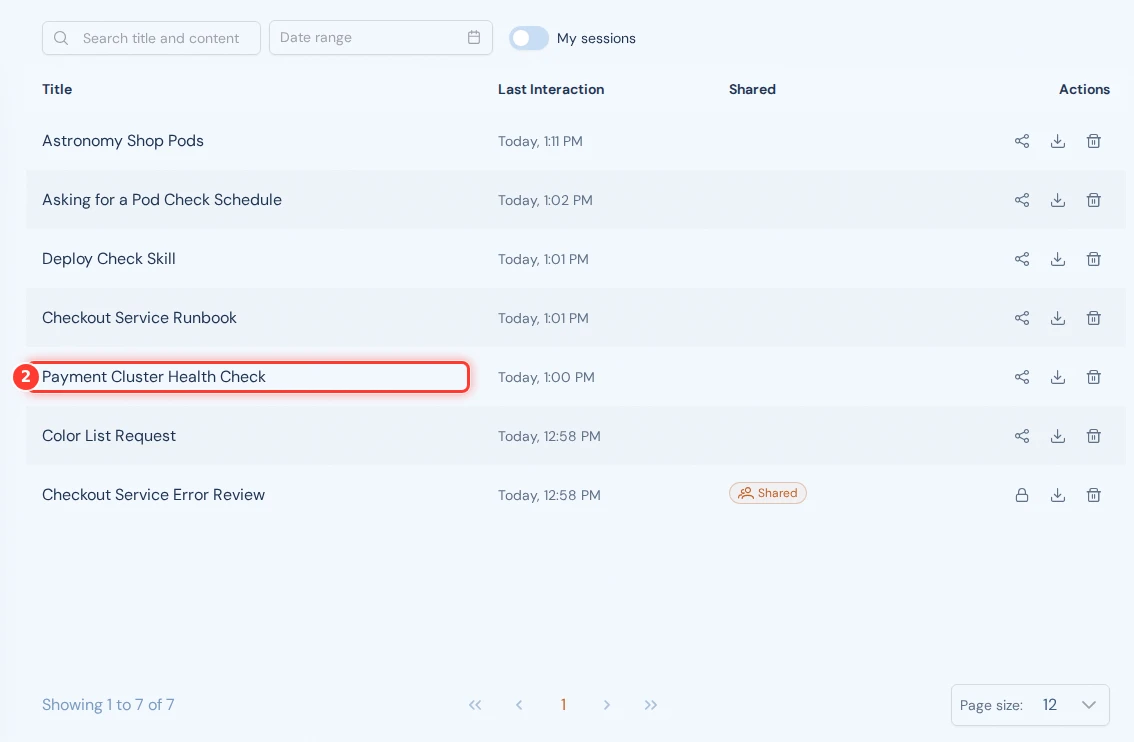
Click the title of the session in the table.
The session panel lists your most recent sessions and the recent sessions other users shared. It groups them under Today and Older. A Pinned group appears above them after you pin a session.
Each group header shows the number of sessions it lists. Click a group header to close that group. Click it again to open it.
Click All sessions at the bottom of the session panel for the full list. The Older group shows at most 30 sessions. When it is full and open, this link moves into that group. It then reads Show all sessions.
Click an entry in the session panel to open that session. A users icon marks a session that you or another user shared.
While the agent writes, you can stop the reply or queue a message.
What is in the session menu?
Click the three dots icon in the top right corner of an open session. The session menu opens.
The top of the menu shows the session title and the last interaction. It also shows whether the session is Private or Shared.
An Owner badge names the user who started the session. The badge reads Unknown user when that user account no longer exists. The badge reads Hyground for a scheduled session and an Auto RCA.
The menu holds these entries:
- Rename. See Rename a session.
- Pin, or Unpin when the session is pinned. See Pin a session.
- Share, or Unshare when the session is shared. The Sessions page also has these actions. See Share a session and Unshare a session.
- Export. The Sessions page also has this action. See Export a session.
- Delete. The Sessions page also has this action. See Delete a session.
If you do not own the session, Hyground shows Unshare in grey. You cannot click it. The menu does not show Delete.
On the Sessions page every icon stays clickable. See What does the Sessions page show?.
What does the Sessions page show?
The Sessions page lists the sessions that users started. It shows your own sessions and every session another user shared. The Owner column names the user who started the session. The Shared column shows the Shared badge for every shared session.
Use the search box above the table to find a session. Its placeholder reads Search title and content. Use the Date range field beside it to see only sessions from a period you choose. Turn on the My sessions switch to see only the sessions you started.
Search covers only the most recent sessions. These include the sessions other users shared. Search shows the best matches first, not the newest sessions first.
Hyground shows a hint above the table when the search could not cover every session. Add a Date range to reach older sessions.
The table shows 12 sessions on each page. Use the Page size dropdown below the table to show 24 or 60.
Scheduled sessions and Auto RCAs are not in this table. Each kind has its own page. See Where do you find them?.
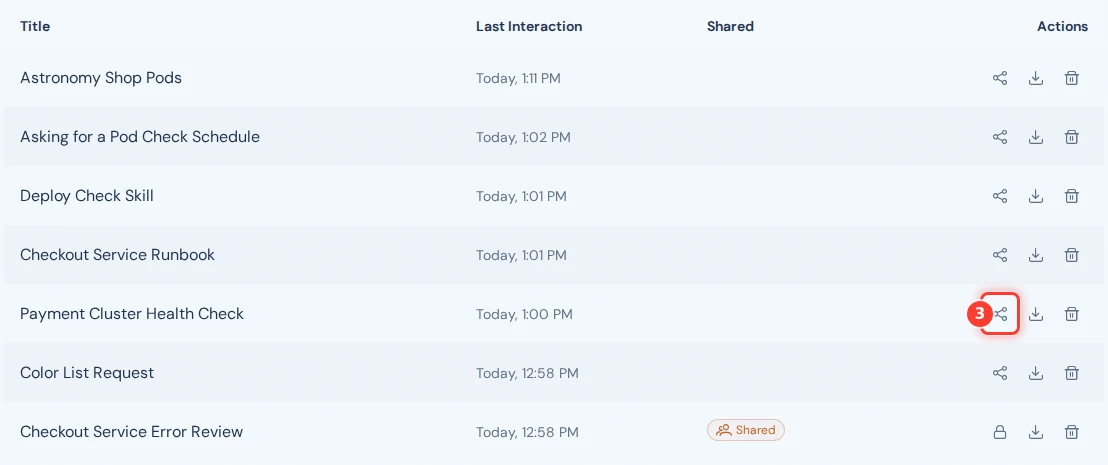
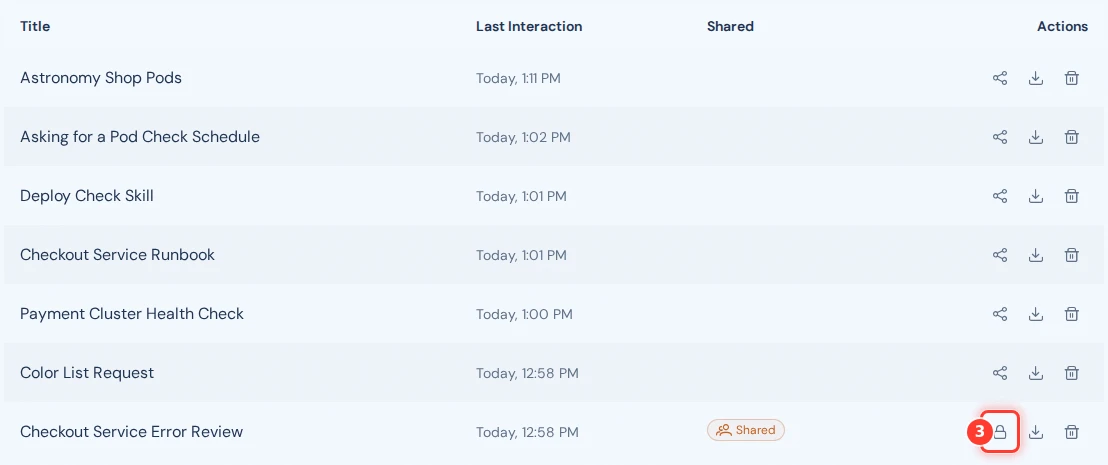
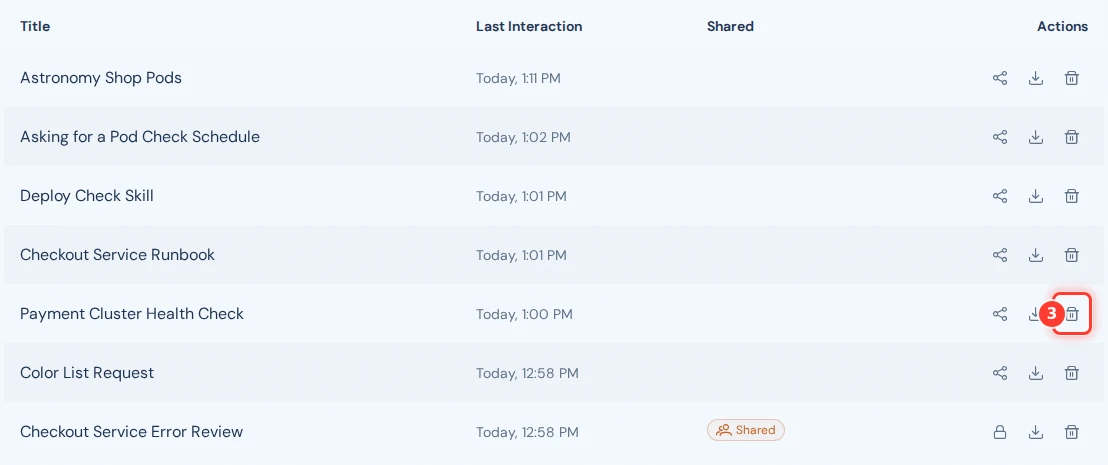
Each row shows a share icon or an unshare icon in the Actions column. A private session shows the share icon. A shared session shows the unshare icon, a padlock. Every row shows the delete icon, including rows for sessions you do not own.
If you do not own the session, Hyground still opens the Delete Session or Unshare Session dialog. The action then fails after you confirm. After you confirm a delete, the notification names the reason. After you confirm an unshare, the notification only says that the action failed.
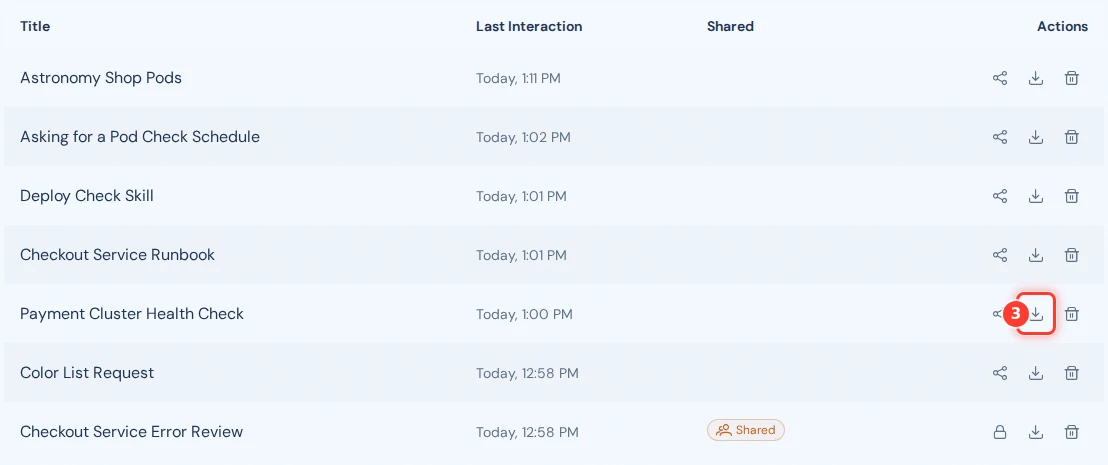
Every row also shows the download icon. See Export a session.
Export a session
-
Open the Sessions page.
-
Find the session in the table.
-
Click the download icon in the Actions column. Its tooltip reads Export session.
-
Click Full Session or Redacted Session.
For the contents of the file, see What does an export contain?.
You can also click Export in the session menu. A submenu opens with Full Session and Redacted Session.
What does an export contain?
Full Session exports the whole session. Redacted Session replaces the
agent's replies and the results of the
tool calls with [REDACTED].
Every user message stays in the file. This includes the messages that other users sent into a shared session. The names of the tools the agent ran and the values it passed to them stay in the file.
If the session references files, the Full Session download is a ZIP archive that also holds those files. Otherwise the download is a single JSON file. A Redacted Session download is always a single JSON file and never holds session files.
For what a session stores in the first place, see Your data.
Share a session
-
Open the Sessions page.
-
Find your session in the table.
-
Click the share icon in the Actions column. Its tooltip reads Share session.
-
Click Yes in the Share Session dialog.
The Shared column now shows the badge.
The Share Session dialog uses the words team members. This means every user of your installation, not a smaller group.
The dialog also warns you when the session holds recalled content from your private sessions. Other users can then read that content too. After you share a session, the agent recalls shared sessions only. See What can the agent recall in a shared session?.
You can also click Share in the session menu. The same dialog opens.
Unshare a session
-
Open the Sessions page.
-
Find your shared session in the table.
-
Click the unshare icon in the Actions column. Its tooltip reads Unshare session.
-
Click Yes in the Unshare Session dialog.
The Shared column no longer shows the badge.
You can also click Unshare in the session menu. The same dialog opens.
Rename a session
-
Open the session.
-
Click the three dots icon in the top right corner.
-
Click Rename.

-
Type the new title.
-
Click Save.
Every user who can see the session sees the new title.
Pin a session
-
Open the session.
-
Click the three dots icon in the top right corner.
-
Click Pin.

The session moves into the Pinned group of the session panel. Other users do not see your pins. The order of the Sessions page does not change. To remove the pin, click Unpin in the same menu.
Your administrator can set a time after which Hyground deletes old sessions. Hyground keeps the session if any user has pinned it. See How long does Hyground keep a session?.
Delete a session
-
Open the Sessions page.
-
Find your session in the table.
-
Click the delete icon in the Actions column. Its tooltip reads Delete session.
-
Click Yes in the Delete Session dialog.
Hyground deletes the session and its messages. You cannot undo this. If the session was shared, it disappears for every user.
You can also click Delete in the session menu. The same dialog opens.