Check for vulnerabilities and security events
The agent can look up public security information for you. It can also check which known vulnerabilities and security events concern the container images that run in your clusters.
This feature is experimental. An administrator must turn on the Security Feed before the agent can use it. The feature can change in a later release without notice. Your administrator finds the steps in Security Feed.
What can you ask?
The agent can do these tasks. Replace the IDs and names in the examples with your own.
| Task | Example message |
|---|---|
| Look up an ID | What do you know about CVE-2024-3094? |
| Search | Search the Security Feed for security events about GitHub Actions. |
| Check a package | Is lodash 4.17.20 in the npm ecosystem listed in the Security Feed? |
| Match events to your images | Do any security events name images that run in my clusters? |
| Rate scanner findings | Rate the findings from my vulnerability scanners against the Security Feed. |
An ID can be a CVE, a GHSA, a malicious-package ID, or an event ID. The agent shows up to 50 records for the ID. These include records that use another ID for the same vulnerability.
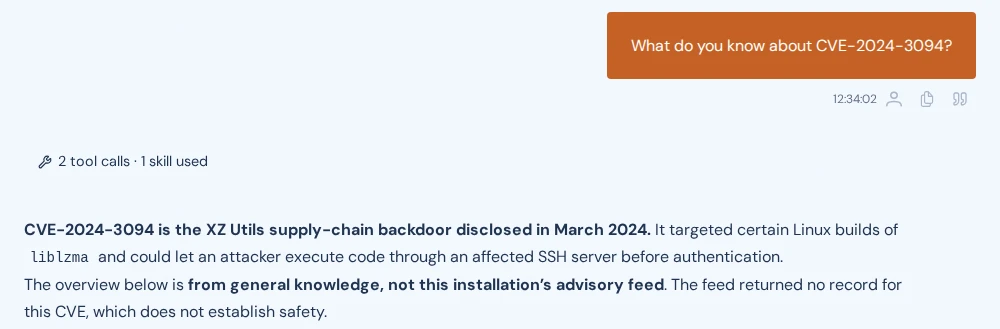
When the Security Feed has no record, the agent says so. The agent marks what it adds from general knowledge. In its answers, the agent can call the Security Feed "the feed" or "the advisory feed".
For a package, give the ecosystem, the name, and the version. The agent lists the advisories for that package. When an advisory gives a version range, the Security Feed does not compare your version with it. Compare your version with the range yourself. Do not rely on the agent when it says that your version is in the range or outside it.
The last two tasks report only what changed since the last run. They show new findings, findings that became more serious, and findings that closed. The last run can be one that another user or a schedule started. An answer with no changes does not mean that there are no findings.
The agent keeps the findings between runs. Every user of your installation can read them, even when you started the run in a private session. Do not attach a scanner file whose findings other users must not read.
To see the open event matches, ask Which security event findings are open for my images?
The agent can also hold findings open. It does this when many findings would close at once. It also does this when a scanner from the last run is missing. A held finding closes when that scanner reports again. You can also tell the agent in the session that it can close. Your confirmation closes it for every user.
Rate findings from a scanner
When the Trivy Operator runs in your clusters, the agent reads its reports. For another scanner, attach a file with its findings. Other users can read the findings from your file.
-
Click the plus icon in the bottom left corner of the message box.
-
Click Attach file.

-
Select the file with the findings.
-
Type a message, for example
Rate the attached scanner findings against the Security Feed. -
Press Enter.
Each line of the file is one JSON object: a finding, or an image that the scanner found clean. Save the file as .jsonl. This is an example with one finding and one clean image:
{"image": "registry.example.com/team/app@sha256:<digest>", "id": "CVE-2026-1234", "aliases": ["GHSA-xxxx-xxxx-xxxx"], "package": "openssl", "installed": "3.0.1", "fixed": "3.0.2", "severity": "HIGH", "scanner": "grype"}
{"image": "registry.example.com/team/web@sha256:<digest>", "scanner": "grype"}
- A finding line needs
imageandid. Add the other fields of the first line when your scanner gives them. imagemust carry the digest that the pods in your clusters run. Without that digest, the agent counts the finding but cannot find the workloads that run the image.scanneris the name of the tool, without a version. Use the same name on every run. If a scanner is missing from a run, its earlier findings stay open.- For an image that the scanner found clean, write a line with only
imageandscanner, as in the second line.
See Upload files for the file limits.
Check every day
Ask the agent for a daily schedule. The agent repeats the details of the schedule and creates it after you confirm. Your role needs the right to create schedules. See Ask the agent for a schedule.
An example message:
Create a schedule that rates my scanner findings against the Security Feed every morning at 07:00.
Every run starts a scheduled session that reports only the changes. A scheduled session cannot use a file that you attach. For scanner findings, it reads only the Trivy Operator reports from your clusters.
Findings from a file stay open until a new file from that scanner no longer lists them. You can also tell the agent that they can close. A finding also closes when no workload runs its image any more. Until then, a scheduled run can name them as findings that it holds open.
Every user of your installation can read a schedule and its sessions. See Schedule a session.
How do you read an answer?
- The answer lists only the findings whose ID the Security Feed lists as exploited or named by an event. The agent only counts the other findings.
- Treat each scanner finding as a lead. A scanner found the package in a running image. The Security Feed lists the ID as exploited or named by an event. Confirm whether the workload is affected before you act.
- The agent can call an event match possibly relevant. A workload then runs the image name from the event, but the agent could not confirm the exact build. Check that workload.
- An answer with no record does not mean that the item is safe. The Security Feed covers only its sources.
- Ask the agent for the status of the Security Feed. The answer shows the age of the snapshot and the sources. A new snapshot normally arrives twice a day. A current snapshot is up to about one day old. Tell your administrator when it is more than two days old.
What if the agent reports a problem with the Security Feed?
| The agent says | What to do |
|---|---|
| The snapshot is expired | The snapshot expired 7 days after Hyground made it. The agent still uses it, but newer records are missing. Treat the answer as incomplete. Tell your administrator. |
| The last import failed | The agent still uses the earlier snapshot. Tell your administrator. |
| The Security Feed is not available | Your administrator has not turned it on, or it has no data yet. Ask your administrator. |
| The snapshot format is not supported | Hyground must be upgraded before the agent can read the snapshot. Tell your administrator. |
| A permission is missing | Your role does not allow the agent to call connected systems. Ask your administrator. |
Your administrator finds the checks on the page Security Feed.