Personalize Hyground
Your profile holds a few details about you and your work. Hyground sends your answer to What kind of work do you do?, About you, and How Hyground should respond to the agent with every message you send. Set the profile once instead of repeating the same instruction in every message.
Fill in your profile
-
Click the gear icon at the bottom of the left navigation.
-
Click Profile. The Profile page opens.
-
Optional: type a name in How Hyground should call you.
-
Optional: click a card under What kind of work do you do?.
-
Optional: describe your work in About you.
-
Optional: describe the answers you want in How Hyground should respond.
-
Click Save.
-
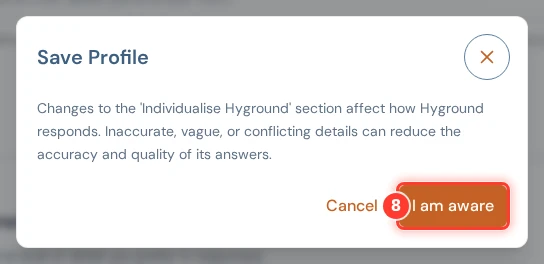
Click I am aware in the Save Profile dialog.
Click Reset to undo your changes before you save. After you save, Hyground shows Profile updated.
What does each field do?
| Field | What it does |
|---|---|
| How Hyground should call you | The name you want Hyground to use for you. Hyground does not send this name to the agent. |
| What kind of work do you do? | The working style the agent assumes for you. Choose Operator, Engineer, Business, or No preference. |
| About you | Your team, the systems you work on, and other context. Up to 500 characters. |
| How Hyground should respond | The tone, the format, and the level of detail you want. Up to 500 characters. |
Your answer to What kind of work do you do? also changes the example text in the two fields below it. That text is an example, not content. Both fields stay empty until you type in them.
None of these fields changes what you are allowed to reach. See Whose access the agent uses.
Which account are you signed in as?
The Your account card sits above the fields on the Profile page. It shows your name and your email address. Your identity provider supplies both. The card is read-only.
A name appears only when it differs from the email address. Some sign-in setups report the email address as the name. The card then shows the address once instead of twice.
The card can instead say that Hyground did not identify you personally. Your request then went to a shared technical account. An installation without authentication does this for everyone. Every session, every skill, and the settings on this page belong to that one shared account. Ask your administrator to set up authentication.
What are you allowed to do?
The Your access card sits under Your account on the Profile page. It shows the roles your administrator assigned you. It is read-only.
What your roles allow and What your roles do not allow name your features in plain sentences. An entry can also list the individual systems or servers it treats differently from the rest.
The card describes your own access. The account the agent signs in to a connected system with is a separate setting your administrator controls. See Whose access the agent uses.
The card can instead say that the installation does not restrict access by role. Every signed-in user then uses every feature.
Your email address can be on the administrator list of the installation. The card says so. You then have administrator access.
The card is absent when Hyground did not identify you personally. Ask your administrator to set up authentication.
What kind of work do you do? is a different setting. It is a personalization field and it changes no access.
Which sessions use your preferences?
Hyground sends your answer to What kind of work do you do? and both text fields with every message you send. This holds in every session you can write in.
The Individualise Hyground section says these details go to Hyground at the start of new sessions. They travel with every message you send.
A scheduled session and an Auto RCA open without a profile. No user sends their first message. See Sessions Hyground starts.
A saved change applies from your next message. Your profile never changes what the agent can reach. See What the agent can see.
Why does Save ask you to confirm?
The Save Profile dialog reminds you that these fields change how Hyground answers. Inaccurate, vague, or conflicting details can reduce the accuracy and quality of the answers. The Individualise Hyground section repeats that warning above the fields.
So keep both text fields short and exact. Name the systems you work on and the form of answer you want. For a form you need only once, write it in the message instead. See Get better answers.