Find a skill
A large skill list is hard to read. Every skill carries at least one category. Use the categories to narrow the list to the skills you need. To run a skill you found, see Run a skill.
Where are the skills?
The Skills panel holds four entries. Each one opens a page with its own list.
- Favorites lists the skills you starred.
- All Skills lists every skill you can see.
- System Skills lists the system skills of your installation. Its page is headed Skills / System.
- User's Skills lists your own skills and the skills other users shared. Its page is titled Skills, and the rest of this guide calls it the Skills page.
Each entry lists the categories of its skills below its name. Each category carries a count. Click a category to open that page with the category already set.
An entry starts open. Click the arrow beside it to collapse it. Click the arrow again to open it. Hyground keeps that state in your browser.
An entry lists only the categories its own skills carry. It reads No categories yet when there are none.
A switch above every list shows the skills as rows or as cards. Its two options are List and Grid. Hyground uses your choice on every skills page.
What is a category?
Hyground gives every skill at least one category. It decides them in this order.
An assignment wins over every other rule in the diagram. See Give a skill categories.
A skill that names no category, and needs no connected system, is Uncategorized.
Categories are shared. Every user of your installation sees the same set, and every user can change it.
The Manage categories dialog says the categories are shared with everyone in your company. That means every user of your installation.
Filter a page by category
-
Click the Skills icon in the left navigation. The Skills page opens.
-
Click Categories above the list.

-
Click one or more categories.
The page keeps only the skills that carry a category you picked. A second category widens the list. It does not narrow it. The page then shows the skills of both categories.
The other skills pages carry the same filter. Open them from the Skills panel.
Each category shows how many skills it matches. That count follows the search box above the list. On the Skills page it also follows the All, Private, and Shared buttons. It equals what you get when you pick that category alone.
The filter lists every category someone created, including the ones no skill carries. It adds the other categories the skills on that page carry. Those come from a connected system, or from a private skill that names them itself.
No control clears every pick at once. Click a picked category in the filter again to remove it. You can also click its tag on a skill again.
The category you picked stays in the web address of the page. Copy that address to share the filtered list. Save it as a bookmark to come back to it.
Filter from a tag
Each skill shows its categories as tags. A row shows at most two tags. A card shows at most three.
The rest sits behind a count, for example +2. Point to that count to read the remaining names.
Click a tag to add its category to the filter. Click the same tag again to remove it.
Give a skill categories
-
Click the Skills icon in the left navigation.
-
Click the three dots icon in the row or on the card of the skill.
-
Click Categories.

-
Pick the categories in Select categories.
-
Click Save.
Hyground shows Categories updated.
The Skills page is the only one with this menu. On All Skills, Favorites, and System Skills the dialog opens straight from the list.
On All Skills and Favorites, click the three dots icon in the row of a skill. It opens the dialog directly, not a menu.
Only All Skills and System Skills list a system skill. There the row of a system skill carries a tag icon instead. Its tooltip reads Categories.
Every card on those three pages carries the tag icon.
The dialog offers only categories that exist. To get a new one, see Manage categories.
An empty selection makes the skill Uncategorized. The skill does not fall back to the categories it names itself.
The dialog tells you when the skill still shows categories nobody assigned. Its hint names a connected system as the source. The dialog shows the same hint for a category a private skill names itself.
Your selection replaces those categories permanently. The skill then keeps your categories, even when it later needs another connected system.
You can also name categories inside a skill. The editor holds a Categories field for that. See Create a skill in the editor.
Manage categories
-
Click the Skills icon in the left navigation.
-
Click the gear icon beside Categories. Its tooltip reads Manage categories.
-
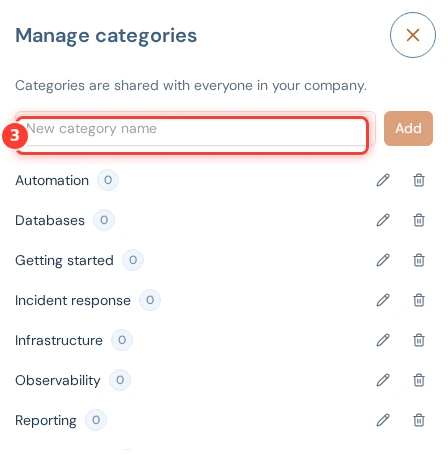
Type a name in New category name.
-
Click Add.
The dialog lists the categories that someone created, each with a count. That count follows the page you opened the dialog from, and the search box above its list. On the Skills page it also follows the All, Private, and Shared buttons. A category of system skills reads 0 in the dialog of the Skills page.
A category Hyground derived from a connected system is not in the dialog. A category that only a private skill names itself is not in it either. You cannot rename such a category, and you cannot delete it.
To rename a category, click the pencil icon in its line. Type the new name. Click Save. Cancel takes you back without a change.
A rename changes the name everywhere at once. Your links to that category keep working.
To delete a category, click the bin icon in its line. The Delete Category dialog reads Skills in this category are kept and lose the category. Delete it? Click Yes.
A skill that loses its last category becomes Uncategorized. Hyground never deletes a skill when you delete a category.
A category that a shared skill or a system skill names itself comes back when the page next loads. A shared skill that only names the category itself is still in it.
A skill that had the category assigned loses it instead. A system skill always loses it, even one that names the category itself. The category comes back empty when every skill loses it that way.
Change the skill to remove the category for good.
Uncategorized is a category like every other. You can rename it, but a delete fails.
A category name takes at most 32 characters.
Hyground reads upper case and lower case as the same. It also reads a space, a hyphen, an underscore, and a slash as the same character. It then reuses the category you already have, or it refuses the new name with Failed to create category. Please try again.
Who can change the categories?
Every user of your installation can add, rename, and delete a category. Every user can also assign categories to any skill they see. There is no separate permission for it.