Create a skill
You get a skill in two ways. Ask the agent for it in a session, or fill in the skill editor yourself. For the agent, one message is enough. The agent also changes, shares, and deletes a skill for you.
What do you write into a skill?
The When to use line decides when the agent loads the skill by itself. The content of the skill holds the steps the agent then follows. Write both for the agent, not for a reader. The agent fills both when it writes a skill for you.
Write a skill once, and stop repeating the same instructions. For the ways to run one, see Run a skill. That page also covers your favorites, the system skills, and the menu entry that turns a skill off.
Ask the agent for a skill
You do not need the editor. Describe the skill you want in any session. Name the task of the skill and the words that must trigger it.
An example message:
Create a skill that summarizes the errors of the last deployment when I ask for a deploy check. Keep the confirmation short.
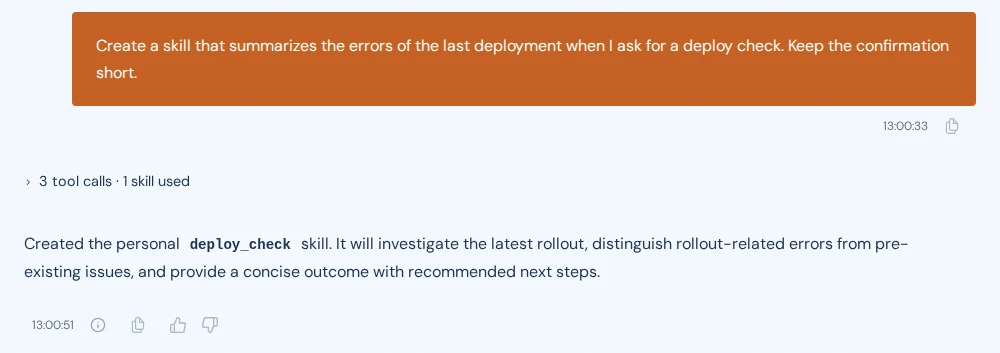
Write your own task and your own trigger instead. The last sentence of the example is optional. It keeps the reply of the agent short, and it becomes part of the skill.
The agent chooses the name of the skill. The reply shows it, in the example
above deploy_check. Hyground cannot change that name later. See
Can you change the name later?
A skill the agent creates is private. See Share a skill to open it to your installation.
Change and share a skill in a session
Name the skill and ask for the change you want. In the session that created the skill, the change alone is enough.
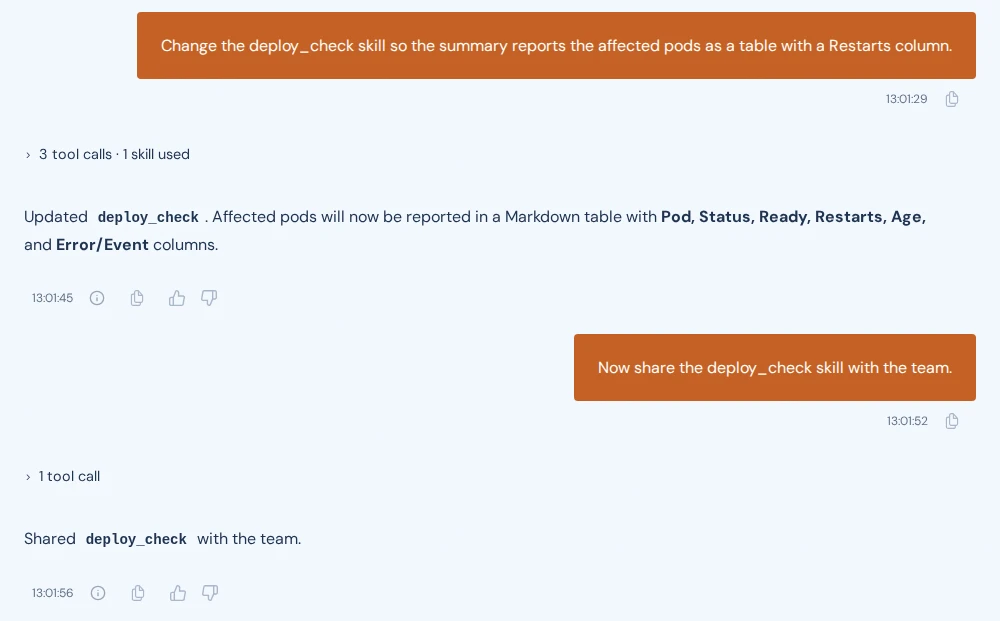
A share from a session has the same effect as Share with team. See Share a skill.
Edit with Hyground starts the same path for a skill that exists. It sits behind the three dots icon in the row of the skill, and in the editor. See Edit a skill in the editor.
Create a skill in the editor
-
Click the Skills icon in the left navigation. The Skills page opens.
-
Click Create skill in the Skills panel.

-
Type a name in Skill name.
-
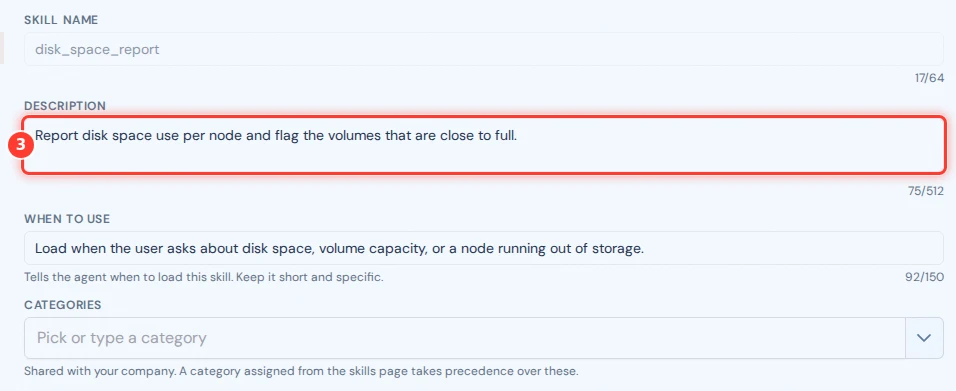
Type a summary of the skill in Description.
-
Type one line in When to use.
-
Optional: pick or type a category in Categories.
-
Optional: clear Make private to share the skill immediately.
-
Type the instructions of the skill in the editor below the fields.
-
Click Save.
Hyground shows Skill saved successfully and opens the new skill.
Make private is set for a new skill. Its hint reads Only visible to you. Clear the box only if every user of your installation should get the skill.
Categories takes the categories the skill names itself. Its placeholder reads Pick or type a category. Pick an existing category, or type a new name and press Enter.
The hint under the field states which categories win. For that rule and for the categories themselves, see What is a category?.
A name you type into Categories cannot contain a comma. Hyground shows A category name cannot contain a comma. The name stays in the field. Remove the comma and press Enter again.
A category name also takes at most 32 characters. Hyground refuses to save the skill when a name is longer.
A category you type into a private skill stays with that skill. Share the skill to add the category to the set every user picks from.
Can you change the name later?
No. Hyground disables Skill name after the first save. To use another name, create a second skill and delete the first one.
How long can each field be?
The editor shows a counter under each field below. Categories carries a hint instead of a counter.
- Skill name takes 5 to 64 characters. Letters, numbers, underscores, and
hyphens are allowed. You type the name without spaces, for example
disk_space_report. The list then shows Disk Space Report. - Description takes 16 to 512 characters.
- When to use takes at most 512 characters. Its counter counts against 150 instead. Above 150 characters the field turns amber and Hyground still saves the line. A short line routes the agent better, as the warning says.
- Categories takes at most 20 entries. Each name takes at most 32 characters. The field accepts more, and Hyground refuses the save.
- The content of the skill takes at least 32 characters. Your installation sets the maximum. The counter under the editor names both numbers.
Hyground refuses to save some character sequences in the content. It names the position of the first one. Move such an example into a file of the skill.
Add a file to a skill
The Files list beside the editor holds the content of the skill in
SKILL.md. You can add more files, for example a script or an example
output.
-
Click Add file under the Files list.

-
Type the file name.
-
Press Enter.
The new file opens in the editor.
Point to a file in the list and click the bin icon to remove it. SKILL.md
has no bin icon.
A skill holds SKILL.md and added files. Your installation sets three budgets.
They cap the number of added files, the size of one file, and their total size.
For an added file, the line under the editor shows its size against the size
limit. The defaults, and how an administrator changes them, are in
Skill Size Limits.
Edit a skill in the editor
-
Click the Skills icon in the left navigation.
-
Click the name of the skill in the list. The editor opens.
-
Change the fields you want to change.
-
Click Save.
Save stays inactive until you change something. Cancel takes you back without a change.
A shared skill is open to everyone. Every user of your installation can edit it, and every user can delete it. Only the user who created it can take it back into private use.
Hyground can also change a skill for you. Click Edit with Hyground in the editor. Hyground opens a new session and asks the agent for the skill. The agent describes the skill and waits for your instructions.
Save your changes first. Edit with Hyground stays inactive while the editor holds unsaved changes.
Who created a skill?
The editor header names the users behind the skill. A Created by badge names the user who created it. A Last modified by badge names the user who saved the last change.
A badge reads Hyground when the agent created or changed the skill. It reads Unknown user when that user account no longer exists.
Every skills list shows the same names beside the date of a skill. The badge there names the user of the latest change. Point at the date to read both users in full.
Share a skill
-
Click the Skills icon in the left navigation.
-
Click the three dots icon in the row of the skill.
-
Click Share with team.

Hyground shows Skill shared with the team. The Private tag disappears from the row.
Share with team means every user of your installation, not a smaller group. Those users can run the skill, and the agent can load it in their sessions. You can unshare the skill later.
The share fails when a shared skill with the same name already exists. Create a second skill with another name and share that one.
The editor offers the same action. It holds a share icon between the icon that exports the skill and the bin icon. Point to the icon to see Share with team. Save your changes first. The icon stays inactive while the editor holds unsaved changes.
Unshare a skill
-
Click the Skills icon in the left navigation.
-
Click the three dots icon in the row of the skill.
-
Click Unshare.

Hyground shows Skill is now private (only visible to you). The Private tag returns to the row.
Only the user who created a shared skill sees Unshare. The menu of every other user offers neither Share with team nor Unshare.
The editor offers the same action. It holds a lock icon between the icon that exports the skill and the bin icon. Point to the icon to see Unshare. Only the user who created the skill sees it. The icon stays inactive while the editor holds unsaved changes.
Delete a skill
-
Click the Skills icon in the left navigation.
-
Click the three dots icon in the row of the skill.
-
Click Delete.

-
Click Yes in the Delete Skill dialog.
Hyground shows Skill deleted successfully. You cannot undo this. If the skill was shared, it disappears for every user.
The editor holds a bin icon for the same action. It sits in the editor header, before the Cancel button.
Which skills can you edit?
The Skills page lists your own skills and the skills other users shared. Use the All, Private, and Shared buttons above the list to filter it. For the other skills pages, see Find a skill.
You cannot edit a system skill, but you can read one. Hyground opens it without the Save button and the bin icon. See Read a system skill.