Run a skill
Run a skill instead of writing the same message again. A run sends the command of the skill to the agent. The agent follows the steps of the skill and reports what it found. To get your own, see Create a skill.
What happens when you run a skill?
Every skill runs inside a session, like every message. A run from the Skills page opens a new session for it. That session is yours. You are its owner, and it stays private until you share it.
Run a skill from the Skills page
-
Click the Skills icon in the left navigation. The Skills page opens.
-
Find the skill in the list.
-
Click the play icon in the row of the skill. Its tooltip reads Run skill.

Hyground opens the new session and sends the command for you. For the rules of that session, see Who can see a session?.
The play icon appears only on an enabled skill. See Enable or disable a skill.
Use the search box above the list. It matches the description and the name
with underscores, for example cluster_health_check. To narrow a long list by
category instead, see
Find a skill.
Run a skill in a session
- Type a slash in the message box. A list of skills opens.
- Type part of the name to shorten the list.
- Press the arrow keys to select an entry.
- Press Enter. The command moves into the message box.
- Press Enter again to send it.
The list shows the command of each skill, not the name on the Skills page. Each entry also names its source: private, user (shared), or system. The label is user (shared) for every shared skill. It does not name the user who shared it.
The skill runs in the open session. Write more text after the command when the skill needs a detail from you.
The plus icon in the bottom left corner of the message box holds the same skills under Skills. That menu shows the name of each skill, not its command. Click a name, and Hyground sends the command. If the agent is still writing, Hyground queues it.
Open a skill from a message
You can click a skill command in a message. That works in your own messages and in the replies of the agent.
- Click the command in the message, for example
/cluster_health_check. A small panel opens. - Read the command and its source.
- Click Open skill.
The panel also shows the description, when the skill has one. The source reads Private, user (shared), or System. Click the command again to close the panel without leaving the session.
For a system skill, Hyground opens the skill to read. See Read a system skill. For every other skill, Hyground opens the editor.
Not every command is clickable. A command inside code formatting or a link is not. A command is also not clickable when you cannot run the skill. That happens with a disabled skill, a deleted skill, or the private skill of another user.
Add a skill to your favorites
-
Click the Skills icon in the left navigation.
-
Find the skill in the list.
-
Click the star in the row of the skill. Its tooltip reads Add to favorites.

Your favorites move to the top of the Skills page. Favorites in the Skills panel collects all of them on one page. The Home page lists up to eight of them under Favorite skills. Click one there to run it.
Click the star again to remove the favorite. Its tooltip then reads Remove from favorites. Other users do not see your favorites.
Enable or disable a skill
-
Click the Skills icon in the left navigation.
-
Click the three dots icon in the row of the skill.
-
Click Disable, or Enable for a skill you disabled before.

A disabled skill keeps its place in the list. The dot beside its name turns grey, and the tooltip of that dot reads Disabled. The row loses its play icon.
A disabled skill also disappears from the list in the message box. No user can run it, and the agent cannot load it, until someone enables it again.
Disabling a private skill affects only you. Disabling a shared skill turns the skill off for every user of your installation.
What is on the System Skills page?
-
Click the Skills icon in the left navigation.
-
Click System Skills in the Skills panel.
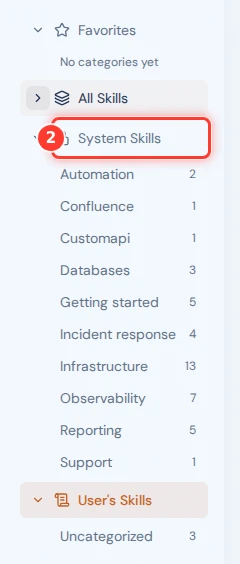
The page lists the system skills of your installation. It shows them as rows or as cards. Use the switch above the list to change that. Its two options are List and Grid.
Read the description of a skill. Click its play icon to run the skill. A padlock marks every system skill.
You cannot change, disable, or delete a system skill. The tooltip of the padlock reads System skills are always active and cannot be edited or removed.
A system skill has a command like every other skill. Type it in the message box to run it inside a session.
Read a system skill
-
Click the Skills icon in the left navigation.
-
Click System Skills in the Skills panel.
-
Click the name of the skill.

Hyground opens the skill. The header carries a padlock and reads System skills are read-only. The page shows the description, the When to use line, the categories, and the instructions.
You cannot change a field. The page holds no Save button and no bin icon.
The list on the left names the files of the skill. Click a file to read it. You cannot add a file, and you cannot remove one.
The header keeps two actions. Click the download icon to export the skill as a ZIP file. Click Run skill to run it.
All Skills also lists system skills. Click the name of the skill there to open it.